
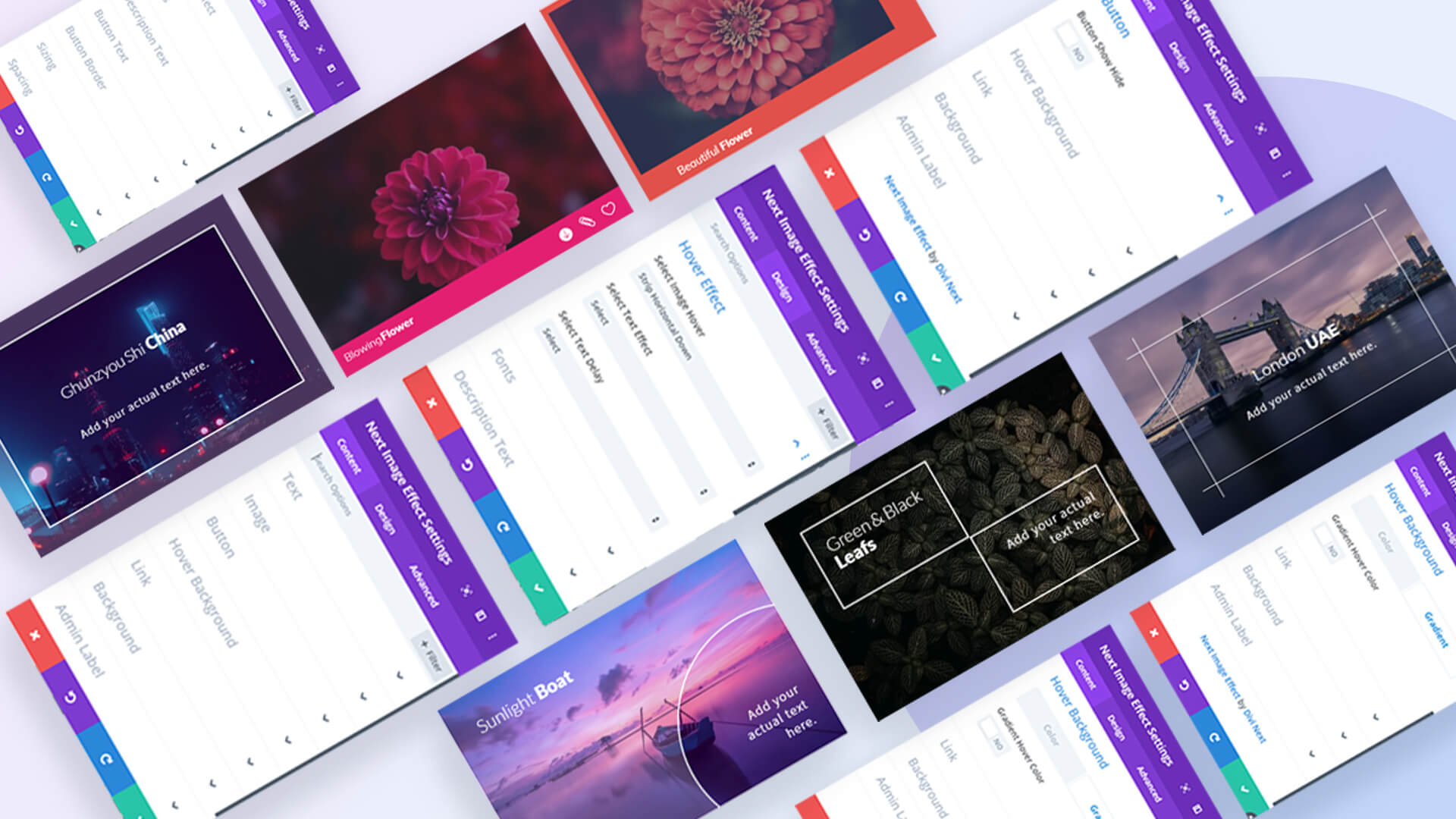
Image Effect Pro Tutorial
All the settings in a ‘Divi Visual Builder’ is very simple and easy, select a set of rows, add a module by clicking on one of the grey (+) signs. Search the name of the module on the search bar and continue to design.
Circular Image Hover
- Once you select this module, you get to add your ‘Text’
- Add a suitable Image Into The Circular Shape
- Add color for the ‘Caption Background’
- Select ‘Fonts’ for Heading Text and Description Text
- 19 Quirky Hover Effects Are Presented For The Circular Image Hover.
Variations
60+ variations are available with The Circular Hover Effect module
Here are some examples: Top to Bottom, Left to Right, Right to Left, Bottom to Top.
Image Hover Box
- Once you select this module, you get to add your ‘Text’
- Add a suitable Image Into The Image Hover Box
- Select the color for Caption Background
- Add a suitable ‘Font’ for Heading Text and Description Text
- Comes with 13 suitable hover effects to pick from
- Explore the 30+ variations when combining directions
Variations
Comes with 30+ variations when combining directions
Here are some examples: Top to Bottom, Left to Right, Right to Left, Bottom to Top.
Image Icon Effect
- Once you select this module, you get to add your ‘Text’
- Add a suitable Image Into The Image Icon Effect
- You can add three icons that will act as a linked button to make it
- easier for users to go to specific pages the icon symbolizes.
- Pick between ‘Heading’ or ‘Focus’ text
- Pick from the 6 Interesting Hover Effects in the collection
Image Scroll Effect
- Once you select this module, you must upload an image
- Add a suitable image with a proper length in height
- Add a button
- Add an overlay
- Add scroll effect using ‘Background Position’
Variations
Pick a variation from ‘Background Position’.
Mega Image Effect
- Once you select this module, you get to add your ‘Text’
- Add a suitable Image to The Mega Image Effect
- Select a color for the ‘Hover background’
- Select ‘Fonts’ for Heading Text and Description Text
- 220+ fantastic hover effects available within The Mega Image Effect module
- There is a feature where you ‘Select Text Effect’ to add effects on your ‘Typography’
- You can also control the speed of your text effect using ‘Select Text Delay’
Minimal Image Effect
- Once you select this module, you will need to add an image
- Select a hover effect from our 10 most spectacularly simple collection
Ultimate Image Effect
- Once you select this module, you get to add your ‘Heading Text’ and ‘Focus Text’
- Add a fitting Image to The Ultimate Image Effect
- Add color for the ‘Background’
- Select ‘Fonts’ for ‘Heading Text’ and ‘Focus Text’
- 24 attractive hover effects are provided


0 Comments